Hodierna
EN
Prices

Help center

How every part of Hodierna works, with screenshots and short recordings. Nothing here is medical advice — for that, there is your midwife, your doctor and your health visitor.

Getting started

Getting started

You sign in with Apple, Google, or an email address that receives a code. There is no password to invent or forget — one less thing to reset at 3am.

Then you add your baby: a name and a date of birth, and that is it. If you are expecting more than one, turn on Twins, or more before you save and the form stays open for the next baby, keeping the shared date of birth. Everything you enter here can be changed later.

Signing in needs a connection once. After that the whole logbook works without one.
Getting started

Your home screen, fitted to you

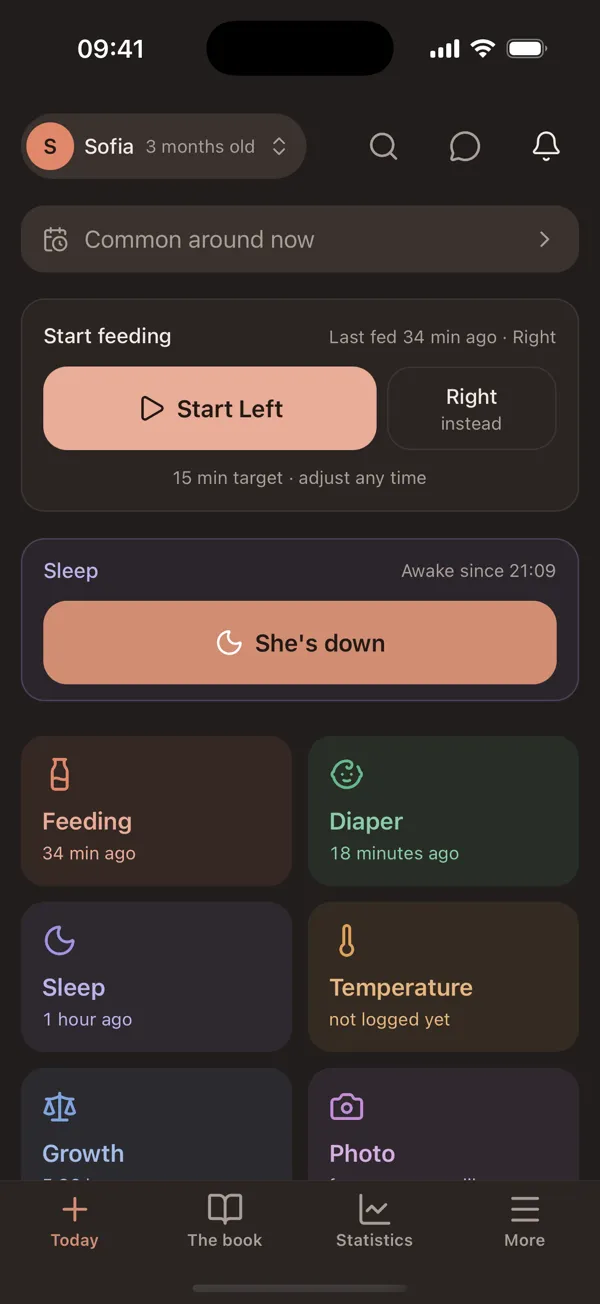
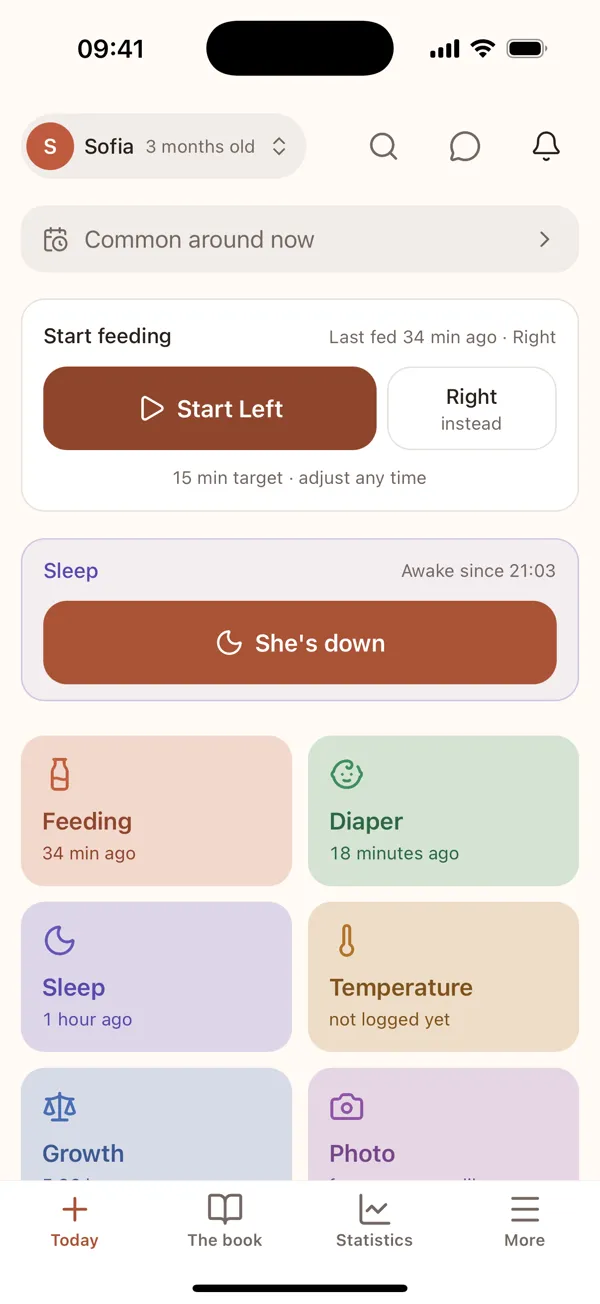
The home screen shows what you are likely to need now; everything else is on the tabs. Its buttons change with your baby’s age — a newborn gets the breastfeeding timer, a toddler gets temperature and illness — and with how you feed.

The order follows your own habits. What you log most at night comes first at night, what you log most by day comes first by day. Within each half of the day the order stays put, so your thumb finds the same button every night.

Above the buttons there is one card at most: an appointment in the coming week, a reminder to write down the next one, your country’s care programme, or — once — Premium. The rest has its own screen.

The home screen for a three-month-old: the feeding timer, sleep and the log buttons
Short recording

Getting started

Day and night

By day Hodierna is bright and colourful, so the buttons are easy to tell apart. At night it turns calm: a darker page, softer colours and fainter buttons, so the screen does not glare at 3am.

It follows your phone’s setting. To choose yourself, open More → Settings → Appearance.

The same home screen by day and by night — Day
Day
The same home screen by day and by night — Night
Night

Every day

Writing things down

The home screen is the logbook. Feeds, nappies, sleep, growth and notes are each one tap, placed where a thumb reaches without shifting your grip, because the hand you have free is usually the only one.

Entries default to now, which is right most of the time. When you are catching up on something that happened an hour ago, change the time before you save.

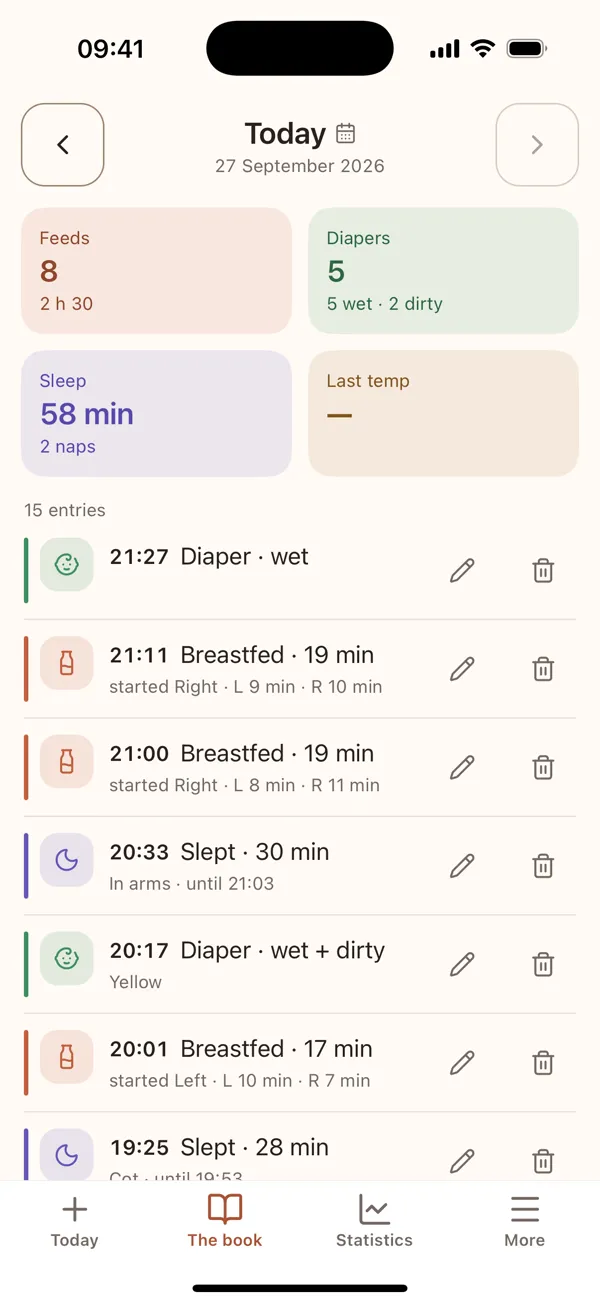
The day view shows everything in order, with who wrote each entry. Corrections are made there — nothing is locked once it is saved.

The day in the book: every entry in order, with its time

Every day

The feeding timer, and which side

For breastfeeding there is a timer that records which side and how long. Start it, leave the screen if you need to, and come back — it keeps time while you are elsewhere in the app.

The home screen then tells you which side to start on next, taken from the last feed you logged. This is the smallest feature in the app and the one people mention most, because at 3am nobody remembers.

If you forget to start the timer, log the feed afterwards with a duration instead. Both end up as the same kind of entry.

Start feeding, with the suggested side ready to tap

Every day

Night Watch

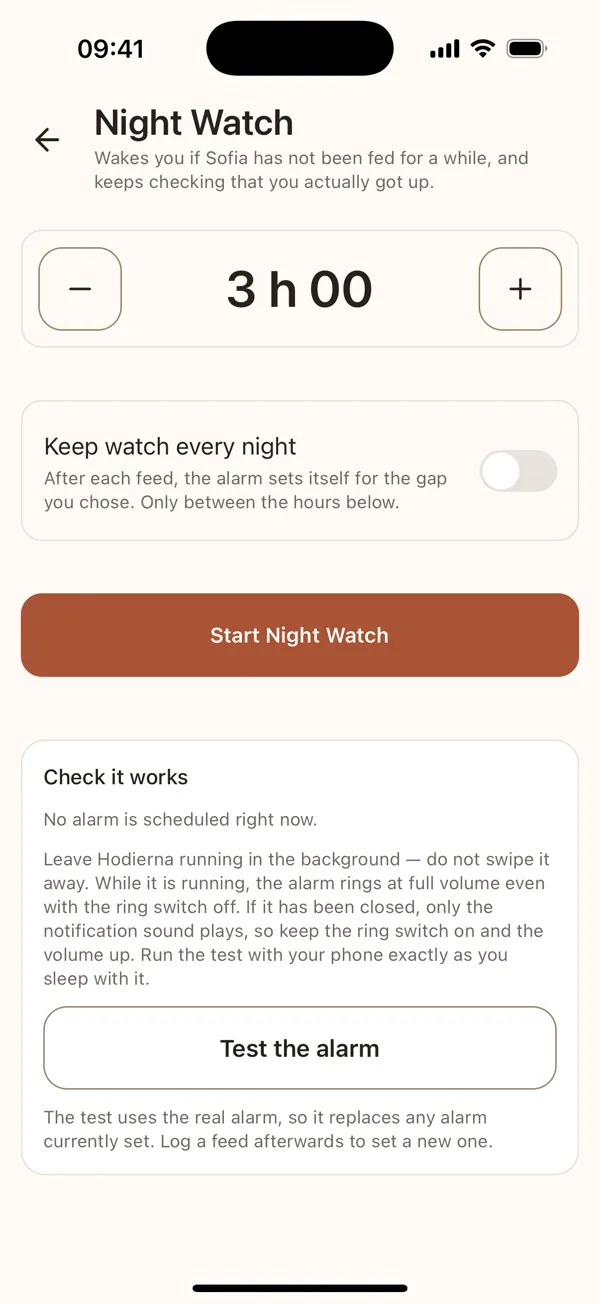
Night Watch is a bedside alarm for a gap you choose. You set the interval — the app never decides that a feed is due, because it cannot know that.

It rings rather than notifies quietly, and it keeps checking that you actually got up: acknowledging it buys a few minutes rather than switching it off.

It needs permission to send notifications, and the phone only asks once. If you have refused, Night Watch cannot ring — the app says so plainly and arms nothing, rather than pretending. You can grant it later from Settings.

Night Watch: the gap you choose, and the button to start it

Every day

Statistics

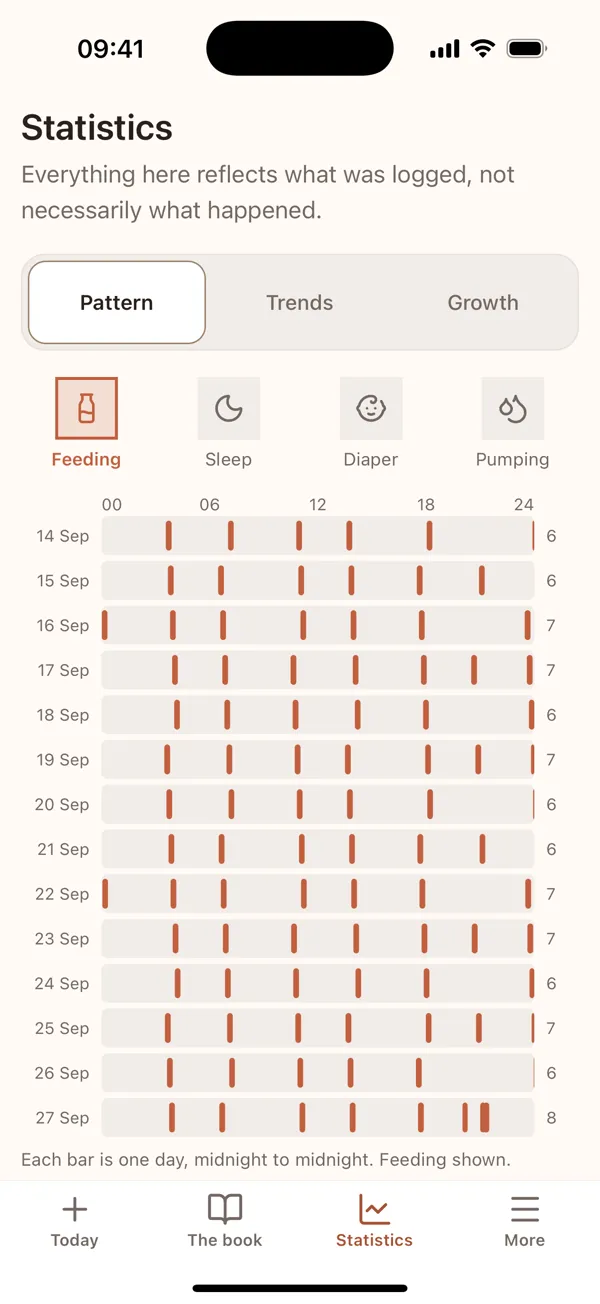
The Statistics tab draws what you logged: the pattern of feeds, nappies, sleep and pumping across the days, trends over the weeks, and growth.

It shows what was written down, not necessarily what happened, and it never says whether anything is enough. For that, there is your midwife and your doctor.

Statistics: a pattern of feeds across the days

Every day

Search and chat

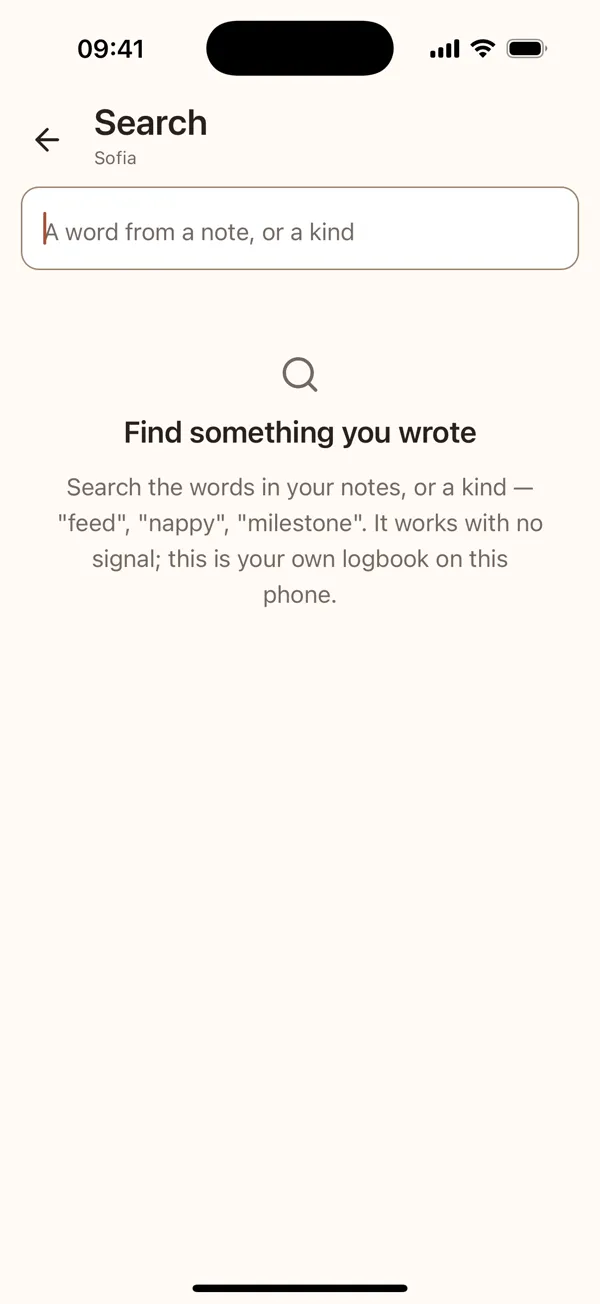
Search finds any word you wrote — in a note, or the name of a kind of entry — on your phone, without a connection. It is under More.

The chat answers questions about your logbook in plain words. Its replies come from an AI model and are not medical advice; its screen says so.

Search, on your own logbook

Pregnancy

Pregnancy mode

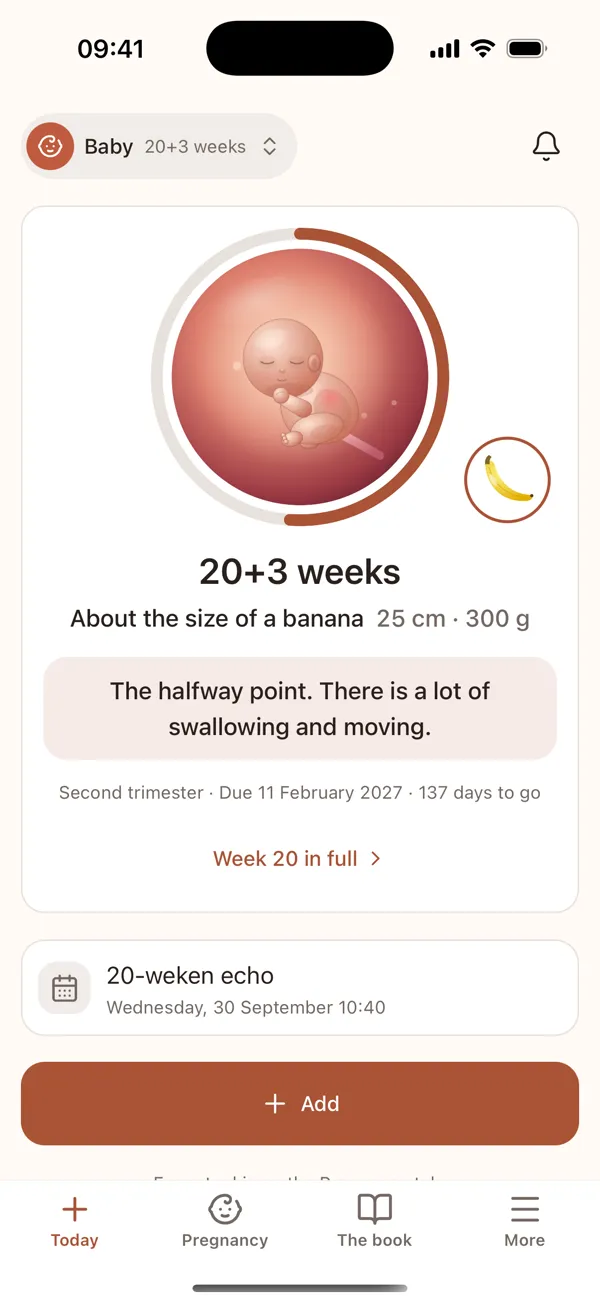
You can start Hodierna while you are expecting. Give the due date instead of a birth date and the home screen follows the weeks: the baby, drawn for the week, its typical size as a fruit or an animal, and one line about the week.

Below it: your next appointment, your scans, and one Add button for everything else. The Pregnancy tab holds every tool, each with a line on what it does. When the baby arrives, the same logbook carries on.

The pregnancy home at 20 weeks: the baby, the size as a banana, the next appointment and Add
Short recording

Pregnancy

Week by week

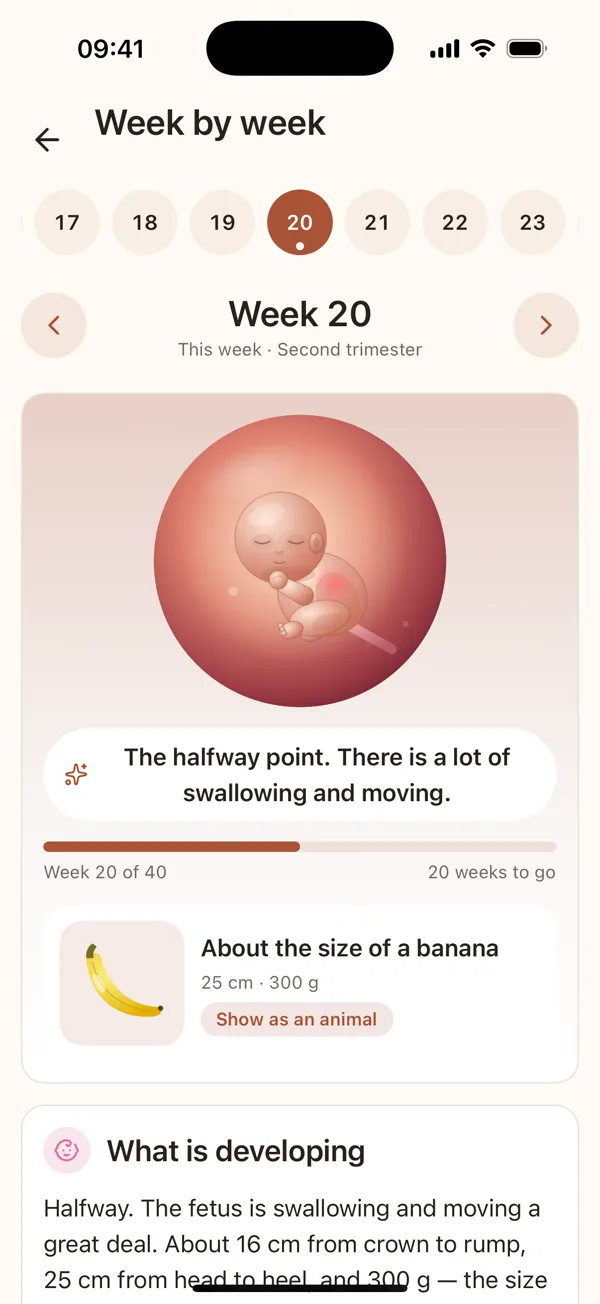
Tap “Week … in full” on the home screen, or Week by week on the Pregnancy tab, and pick any week from the strip along the top.

Each week says what typically develops, what you may notice, and names its source with a link. It is the same text for every pregnancy at that week — never a reading of yours.

Week by week: the strip of weeks, the baby for week 20 and what is developing
Short recording

Pregnancy

Contractions, kicks and readings

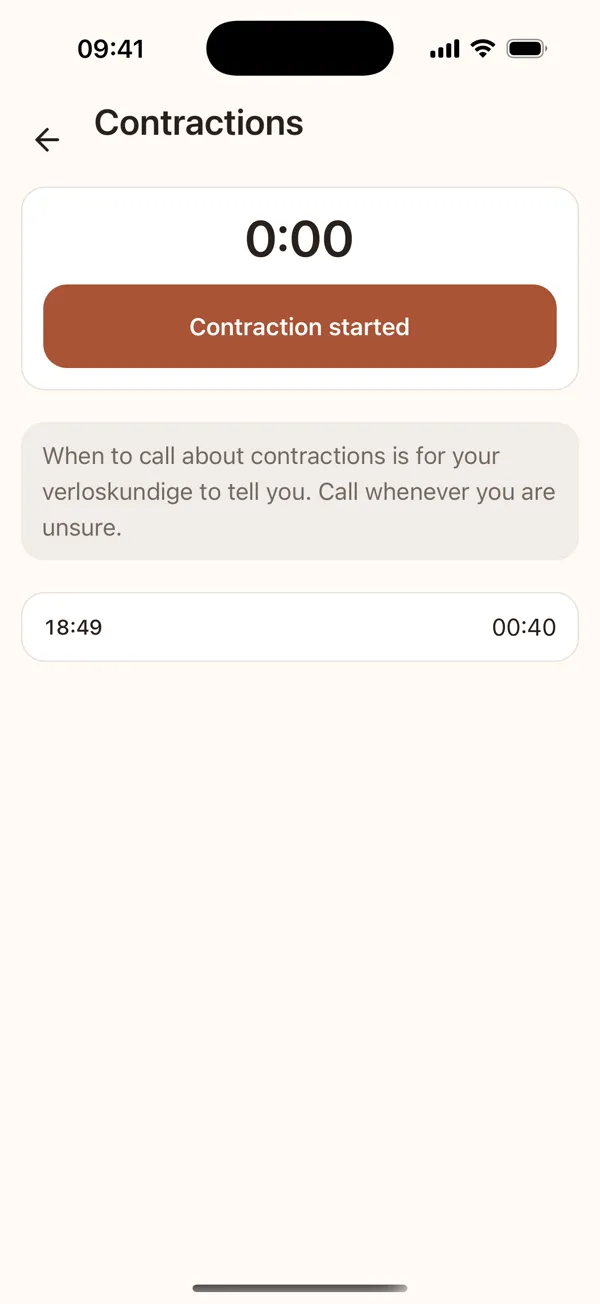
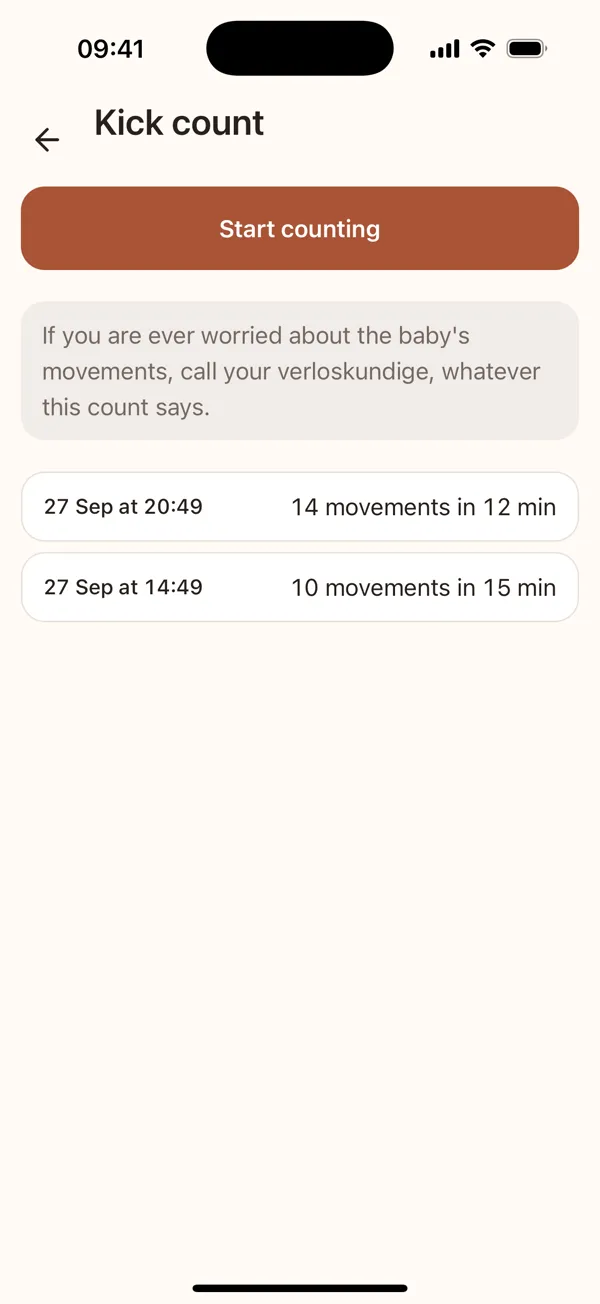
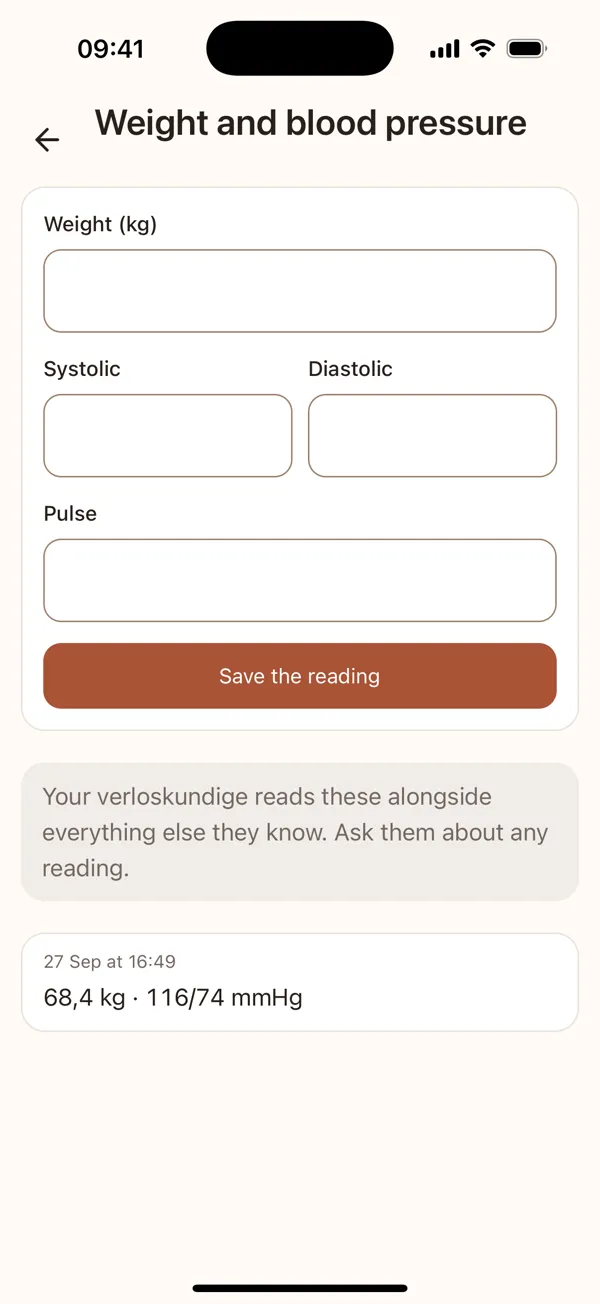
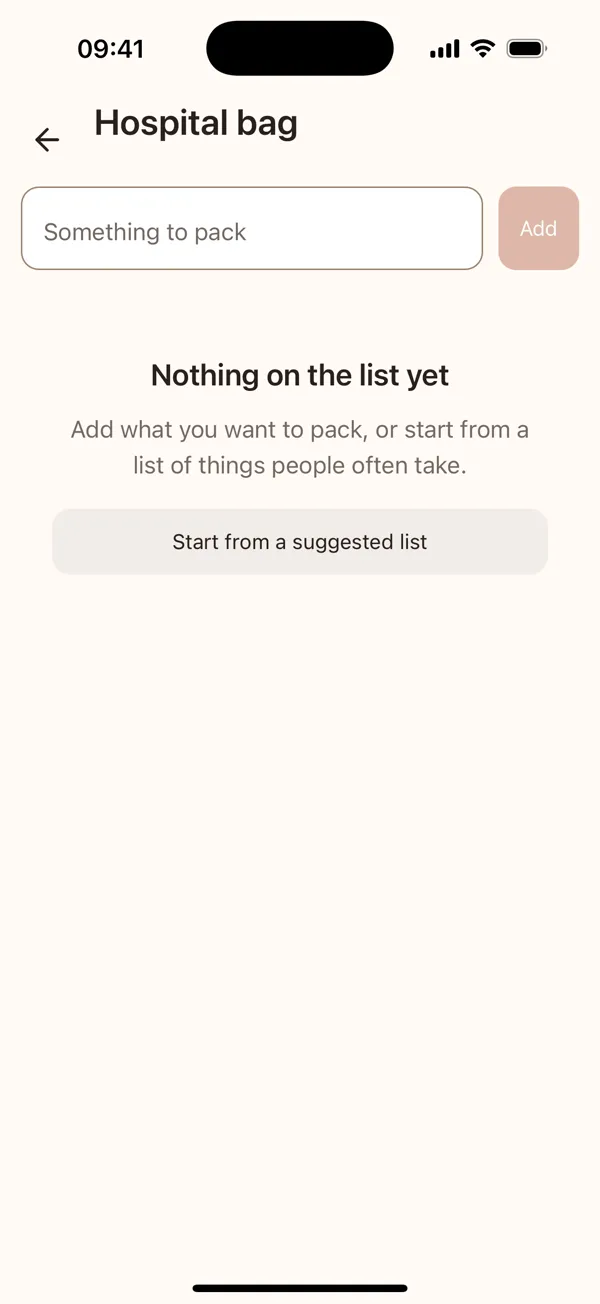
The contraction timer: tap at the start and the end of each one, and it keeps the length and the gap. The kick counter counts movements in one sitting. Weight and blood pressure keeps your readings in one place.

They record; they do not judge. When to call is for your midwife to tell you — call whenever you are unsure.

The contraction timer, the kick counter, weight and blood pressure, and the hospital bag

Pregnancy

Scans

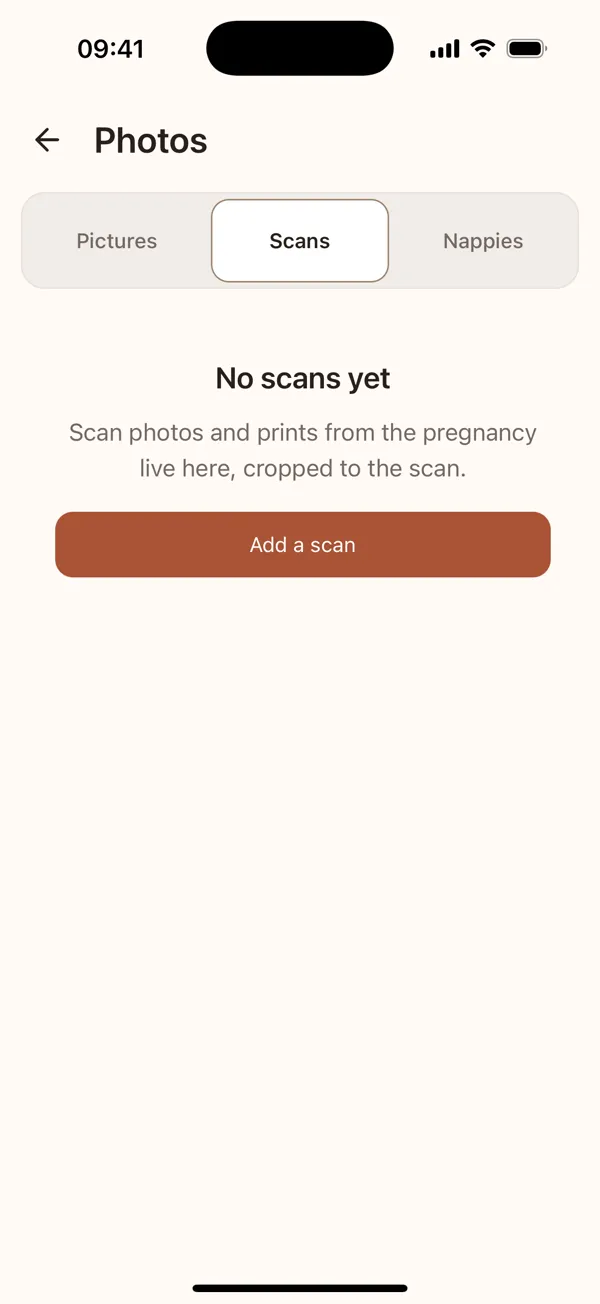
Add a scan from the home screen: photograph the print or pick it from your library. Hodierna crops it to the scan and keeps the whole photo a switch away.

Your newest scans appear on the home screen as soon as you add them. All of them are under Photos, on the Scans shelf.

The Scans shelf in Photos

Family and care

Sharing with your partner and your carers

From the family screen you invite the people helping you: your partner, a grandparent, a midwife, a maternity nurse. Each gets their own access, and you choose what they can do — read the logbook, or also write in it.

Access expires by itself, ten days by default, which is roughly how long a kraamweek lasts. You do not have to remember to switch it off; that is the entire point.

You can see who has access and end it at any time. Carers can never invite anyone else, and they only ever see what you granted them.

Family and care

Appointments and vaccinations

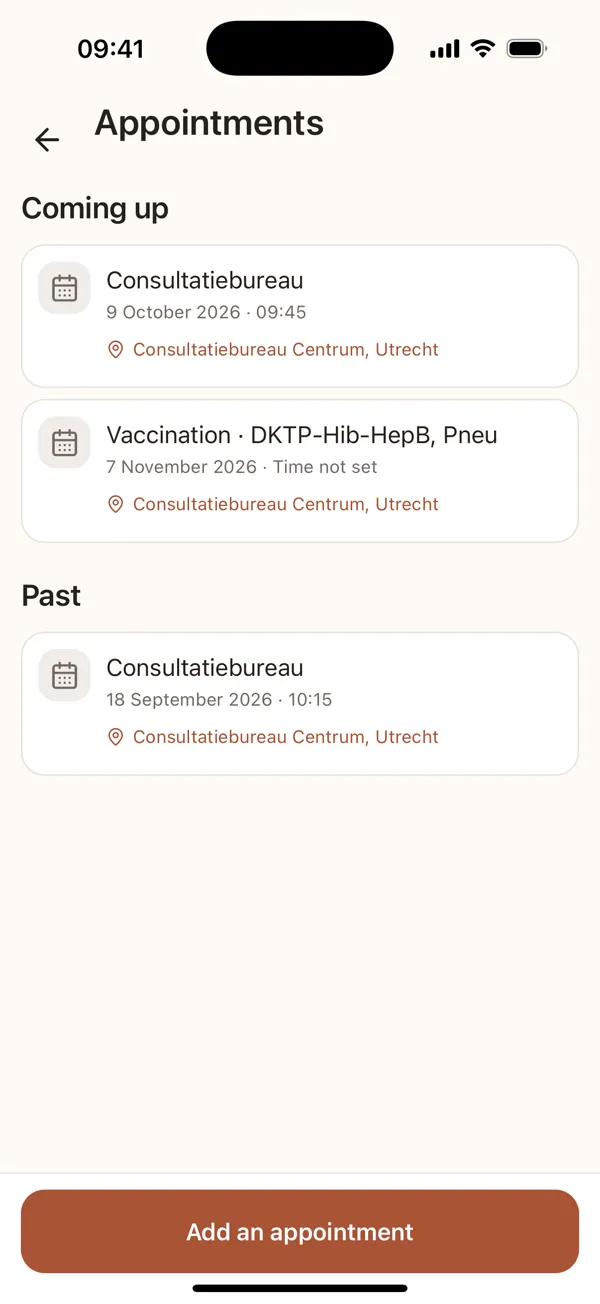
Add check-ups, scans and vaccinations with a date, a time and a place. The next one in the coming week appears on the home screen.

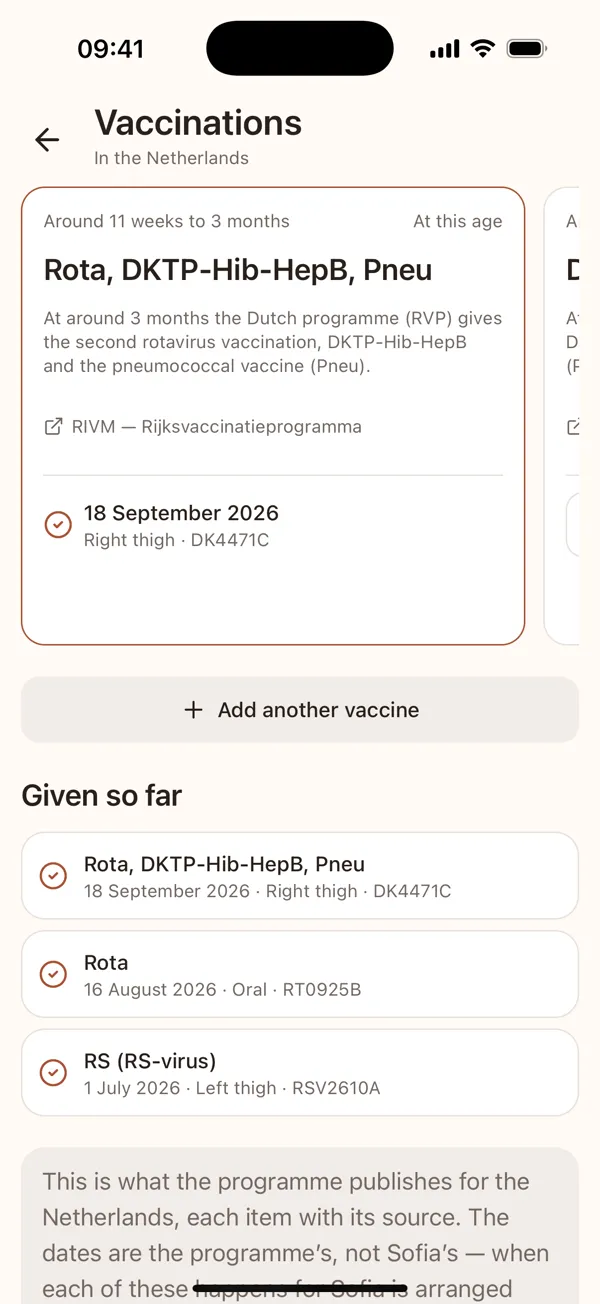
Vaccinations follow your country’s programme: tick each dose off with the leg and the batch number, and add any the programme does not list.

The appointments screen and the vaccination programme

Family and care

Photos and the collection

Any entry can carry a photo. You can take one there and then or choose one from your library — the camera asks for permission the first time and the library hands over only the picture you pick.

Alongside that there is a small keepsake collection: first bath, first outing, the ordinary moments worth having later. It suggests one at a time and you can dismiss any suggestion for good.

It is a collection, not a score. There are no streaks, no badges and no empty slots reproaching you for the ones you did not take.

Your app

Premium

The logbook is free for good. Premium adds document storage you can search by asking, the keepsake book, more photos a day, AI credits to start with, and it covers your household.

On the free plan up to 10 photos a day are uploaded; the rest wait safely on your phone and go up once there is room. When Premium switches on, Hodierna shows what is now open, one tap from each.

Short recording

Your app

Offline, and how syncing works

Every entry is written to your phone first and completes there. Nothing waits for a server, so the app behaves the same in a lift, on a plane and in a nursery at the back of the house.

When something has not reached the server yet the badge says waiting. That is the normal state of an app used in a house with thick walls, not an error.

When two phones have both written while offline, the later change wins and both devices end up agreeing. Nothing you wrote is dropped silently.

Your app

Your data, and getting it back

Everything lives in our own infrastructure in Europe. Photos and documents sit in private storage, and every request is checked against your permissions on the server rather than only in the app.

Exporting everything — the entries, the photos, the documents — as a file you keep is free, whenever you want it.

Deleting your account is permanent and it is meant to be: the identifying information is destroyed rather than hidden, so what remains cannot be traced back to you or your child.

Something missing, or something that does not work the way this page says? Write to us. hallo@hodierna.app